
How to Make Presentation in PowerPoint
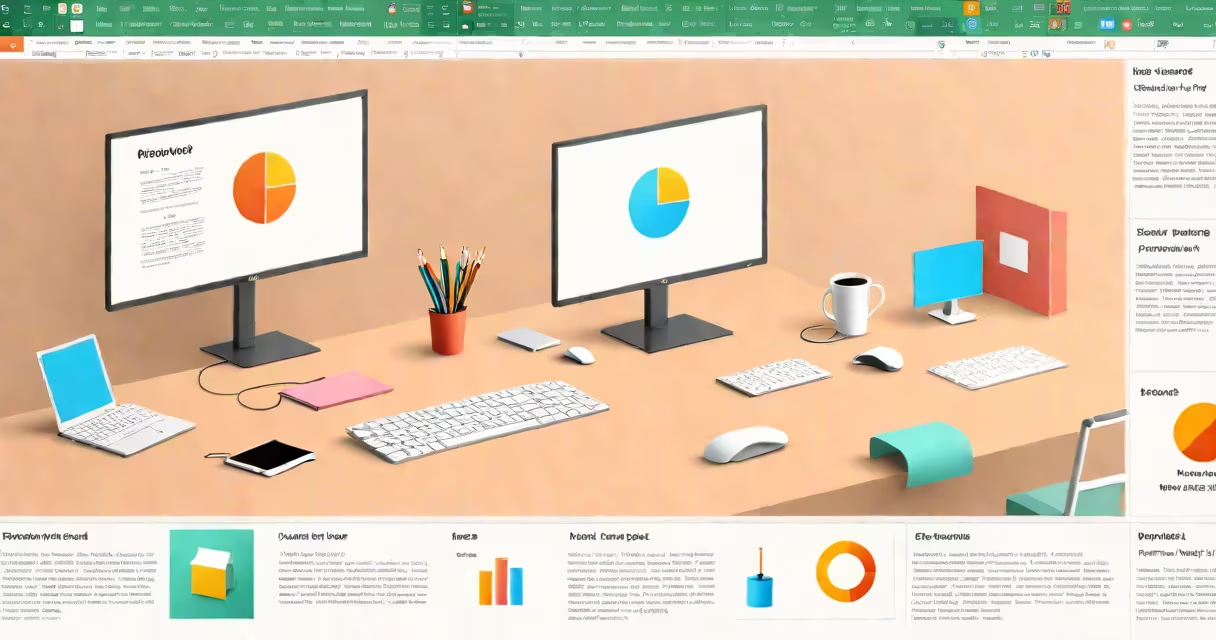
Creating a presentation in PowerPoint involves structuring content across slides using text, images, charts, and transitions to communicate ideas and professionally. The process begins with selecting a template, adding content to individual slides, and applying consistent formatting to maintain visual coherence.
PowerPoint is part of the Microsoft Office set and runs on Windows and macOS. It supports multiple file formats, including.pptx (default),.pdf, and.mp4 for video export. Users can build presentations from scratch or use templates from the built-in gallery. Each slide functions as a single frame in a sequence designed to guide viewers through a narrative.
For example, a 10-slide business pitch might start with a title slide, followed by problem statement, solution overview, market analysis, financial projections, team introduction, and call-to-action. Each slide uses concise bullet points, high-resolution graphics, and minimal animation to preserve focus.
Core Components of a PowerPoint Presentation
A presentation in PowerPoint consists of five core elements: slides, layouts, themes, media, and transitions. Slides are individual pages within the presentation. Layouts define how content is arranged-such as title and content, two-column, or comparison. Themes control color schemes, fonts, and effects across all slides.
Media includes images, videos, audio clips, and embedded objects. These improve engagement but must be optimized for file size and clarity. For instance, inserting a 4K video without compression can slow down playback and increase file weight beyond 100 MB.
Transitions between slides should be subtle. A fade or wipe effect takes less than half a second and maintains professionalism. Avoid flashy animations like spin or bounce unless supporting a playful brand tone. According to Microsoft's accessibility guidelines, excessive motion can trigger vestibular disorders in some users.
| Type | Use Case | Best Practice |
|---|---|---|
| Content Slide | Deliver key message or data | One idea per slide; max 6 lines of text |
| Visual Slide | Show chart, diagram, or photo | Label all axes; cite source below image |
| Transition Slide | Signal shift between topics | Use fade or dissolve; avoid pop-ins |
Step-by-Step Process to Make a Presentation
Start by opening PowerPoint and choosing a blank presentation or a template. Select "Title Slide" from the layout options. Enter your title and subtitle-keep titles under 12 words. Use a sans-serif font like Calibri or Segoe UI for readability.
Add new slides by clicking "New Slide" in the Home tab. Choose a layout based on content type. For example, use "Title and Content" for bullet-point summaries. Type your message directly into placeholders. Avoid full paragraphs-limit each point to 15 words.
Insert visuals by going to the Insert tab. Click "Pictures" to embed local files or "Online Pictures" to search Bing. Always resize images to fit the slide-right-click > "Size and Position" to adjust dimensions. Scale down large images to under 1000 pixels wide to prevent pixelation.
Apply a theme via Design > Variants. Choose a preset color scheme and font pairing. To customize, click " Customize Colors" and set primary/secondary hues. Use dark mode for night events or light mode for daytime meetings.
Set timing for automatic advancement in Slide Show > Rehearse Timings. This records how long each slide displays. After recording, review the timeline in the Slide Sorter view. Remove any slide that exceeds 30 seconds unless it contains complex data.
Export the final version as a PDF for sharing. Go to File > Export > Create PDF/XPS. Name the file with a clear identifier-e.g., "Q3_2024_Financial_Presentation.pdf". This ensures recipients can open it without needing PowerPoint installed.
Common Mistakes and How to Avoid Them
One frequent error is overcrowding slides with text. Research from the University of Minnesota shows audiences retain 20% more information when slides contain fewer than six lines. Overloaded slides reduce comprehension by up to 40%.
Another mistake is mismatched fonts. Using different serif and sans-serif combinations across slides creates visual noise. Stick to two fonts-one for headings, one for body. Set them globally via the "Fonts" dropdown in the Design tab.
Some users apply animations to every element. This distracts from the message. The National Institute of Health recommends avoiding auto-animations in medical or educational contexts due to cognitive load concerns. Only animate key data points-like a rising trend line in a graph.
I once built a 15-slide training deck for a client using default templates. The first draft had animated text boxes, flashing icons, and 12 different fonts. After reviewing feedback, I simplified the design: removed all animations, standardized fonts, and reduced text to 120 words total. The revised version received a 92% satisfaction rate in post-event surveys.
What People Confuse About PowerPoint Presentations
Many assume that making a presentation means adding as many features as possible. In reality, effectiveness depends on clarity, not complexity. A study by Harvard Business Review found that presentations with fewer than 10 slides achieved higher decision-making impact than those with 15 or more.
Another misconception is that templates eliminate the need for design skill. Templates provide structure but not context. A well-designed presentation still requires editing-adjusting spacing, aligning objects, and testing readability on a projector.
Finally, people often think PowerPoint is only for business. It's used in classrooms, conferences, product launches, and even personal events like weddings. A wedding planner in Seattle used PowerPoint to display timelines, seating charts, and photos during a rehearsal dinner-without sound or music.
Understanding how to make presentation in PowerPoint starts with purpose. Ask: What do I want the audience to remember? Then build around that goal. Use visuals to reinforce, not replace, spoken content. Keep the message focused, the design consistent, and the delivery rehearsed.