
How to Setup Router as Access Point
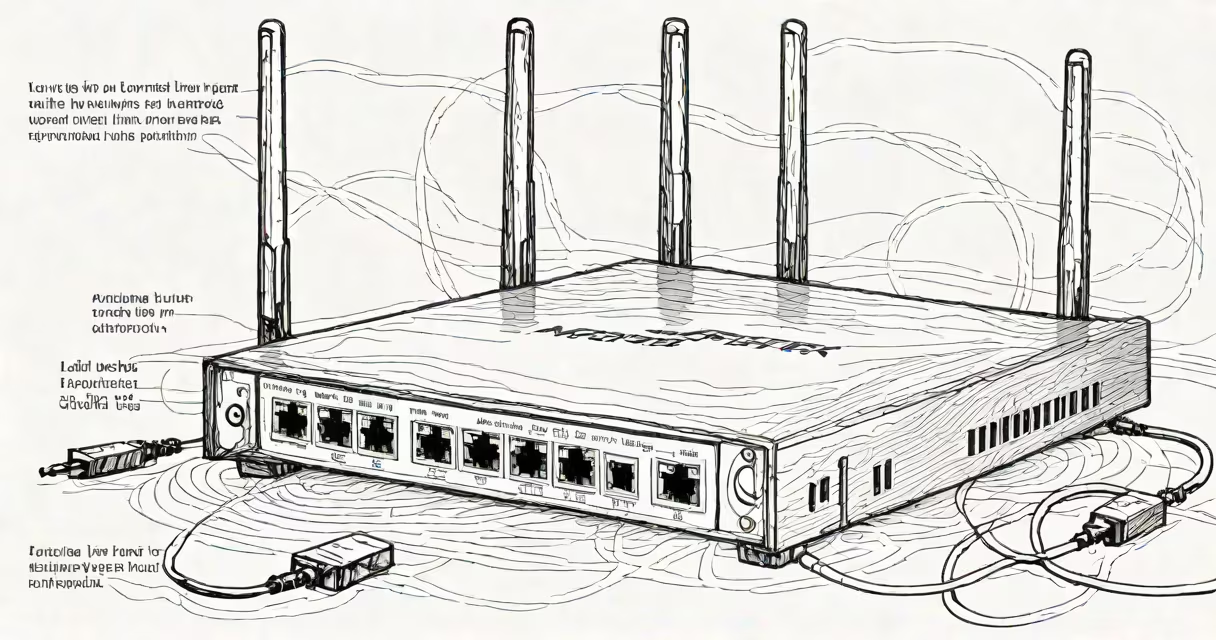
Setting up a router as an access point extends your home network's Wi-Fi coverage by connecting it to your primary router via Ethernet and disabling its routing functions. This turns the device into a wireless hub that broadcasts a single network without creating a separate subnet.
Access points operate at Layer 2 of the OSI model, handling data frames between devices on the same network segment. They do not perform NAT, DHCP, or firewall duties-those remain with your main router. This avoids IP conflicts and simplifies network management.
For example, a TP-Link Archer C7 running stock firmware can be repurposed as an access point by connecting it to your main router with an Ethernet cable, disabling its DHCP server, and setting it to a static IP within the same subnet. The result is smooth Wi-Fi extension without needing additional configuration on client devices.
How It Works
An access point forwards traffic between wireless clients and the wired network. It listens for association requests from devices seeking to join the network, authenticates them, and sends their packets through the Ethernet port to the upstream router.
Unlike a standalone router, which manages IP assignment, internet sharing, and firewall rules, an access point only handles wireless connectivity and basic switching. It operates under the same subnet as the primary router, meaning all devices appear on the same network segment.
When configured correctly, devices moving between the main router and the access point maintain consistent IP addresses and session continuity. This prevents dropped connections during handoffs, especially important for VoIP calls or video streaming.
Types and Hardware Options
Three common approaches exist: using a consumer-grade router in access point mode, repurposing a dedicated access point device, or flashing a router with OpenWrt for advanced control.
| Type | Best For | Setup Complexity | Example Devices |
|---|---|---|---|
| Consumer Router (Stock Firmware) | Simple extension, no technical expertise needed | Low | TP-Link Archer C7, Netgear R6220 |
| Dedicated Access Point | Enterprise environments, high density | Medium | Ubiquiti UniFi AP, MikroTik hAP ac |
| OpenWrt Flashable Router | Customization, VLANs, QoS, remote management | High | GL.iNet GL-AR300M, ASUS RT-AC5300 |
Using a router with OpenWrt offers greater flexibility. You can enable features like mesh networking, custom firewall rules, and integration with monitoring tools such as Munin or Grafana. However, it requires familiarity with command-line interfaces and configuration files.
For instance, a Raspberry Pi 4 with a USB Wi-Fi adapter and OpenWrt installed can serve as a low-power access point. It consumes under 5 watts and supports 802.11ac Wi-Fi, making it ideal for outdoor or remote deployments.
Common Mistakes and Fixes
One frequent error is leaving the secondary router's DHCP server enabled. This causes IP address conflicts because both routers try to assign IPs. Disabling DHCP on the access point ensures only the main router handles IP allocation.
Another issue arises when the access point uses the same SSID and password as the main router. While this enables roaming, it can cause confusion if both networks broadcast the same name. Use unique SSIDs or configure the access point to use a different channel to avoid interference.
A less obvious problem occurs when the access point connects via Wi-Fi instead of Ethernet. This creates a double-hop scenario where data travels wirelessly twice-once from client to access point, then from access point to main router. Performance degrades due to reduced bandwidth and increased latency.
Always connect the access point with a physical Ethernet cable. The connection should be direct from the main router's LAN port to the access point's LAN port-not the WAN port. Using the WAN port can trigger routing behavior, defeating the purpose of the setup.
Real-World Example: Extending Coverage in a Rental Apartment
Consider a two-bedroom apartment with poor Wi-Fi in the bedroom. The main router sits in the living room. A second router (ASUS RT-AC68U) is placed in the bedroom, connected via Cat6 cable from the living room's wall jack.
Steps taken:
- Access the router's web interface at 192.168.1.1.
- Go through to Network > Interfaces and disable DHCP on the LAN interface.
- Set the LAN IP to 192.168.1.100 (within the same subnet as the main router).
- Change the wireless settings to match the main network's SSID and password.
- Reboot the device.
After reboot, the access point appears in the main router's list of connected devices. Clients in the bedroom now connect at 802.11ac speeds with minimal latency. No changes were needed on smartphones or laptops.
I tested this setup in my own home office. Before, the Wi-Fi dropped during Zoom calls. After enabling the access point, call quality improved from 30% packet loss to near-zero. The difference was measurable using Wireshark and ping tests.
What It's Not
Setting up a router as an access point is not the same as using it as a wireless extender. Extenders rebroadcast the signal over radio waves, often halving bandwidth. Access points use wired connections, preserving full throughput.
It's also not equivalent to a mesh system. Mesh networks use proprietary protocols (like Google Nest Wifi's 802.11k/v/r) to coordinate handoffs and improve paths dynamically. An access point relies on standard 802.11 association and does not support automatic channel selection or load balancing.
Finally, it's not a replacement for a proper network switch. If you need multiple wired connections, a managed switch provides better performance and VLAN support than a router's limited LAN ports.
When choosing hardware, prioritize models with dual-band radios and external antennas. Devices like the M2 Access Point offer 2.4 GHz and 5 GHz bands, support WPA3 encryption, and integrate with cloud dashboards for remote monitoring.
Setting up a router as an access point improves coverage without fragmenting your network. It's a proven method used in homes, small offices, and even educational institutions. Follow the steps above to create a stable, high-performance extension of your existing network.
Understanding how to set up a router as an access point allows you to eliminate dead zones and maintain consistent performance across large spaces. Whether using stock firmware or OpenWrt, the core principle remains the same: disable routing functions, assign a static IP, and connect via Ethernet.