
What Is AWS FSx
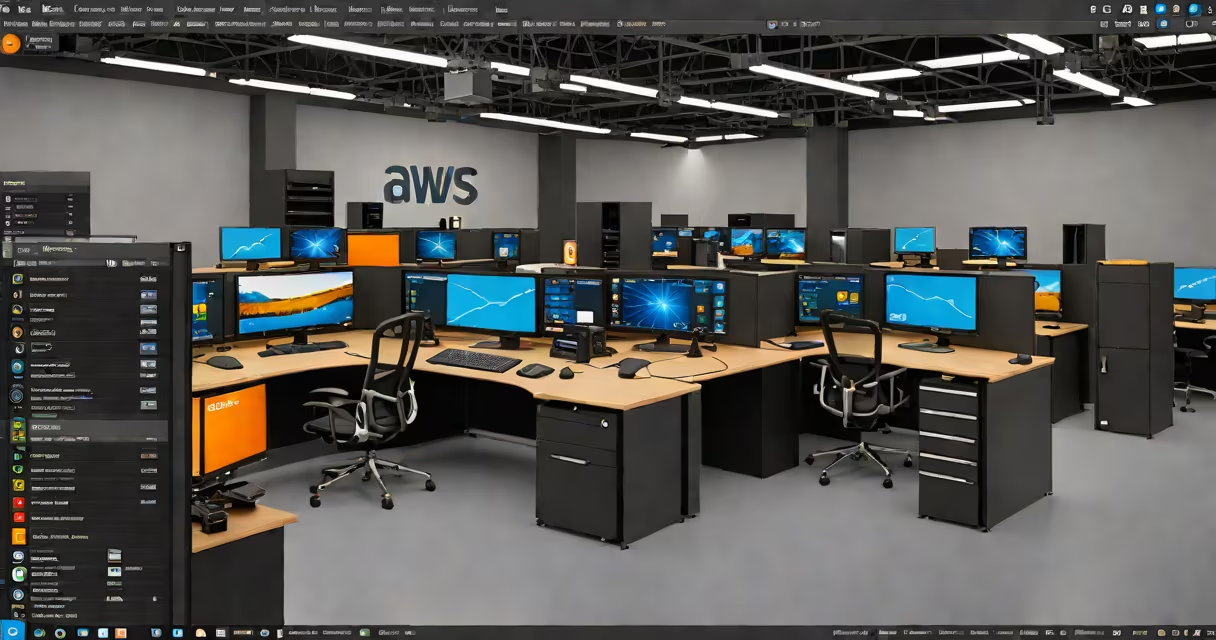
AWS FSx is a fully managed, scalable file storage service offered by Amazon Web Services that provides high-performance file systems for Windows and Linux environments. It supports enterprise-grade workloads such as databases, big data analytics, media processing, and application development, with automatic backups, monitoring, and integration into AWS networking.
FSx eliminates the complexity of provisioning, configuring, and managing file servers. It runs on Amazon's global infrastructure, enabling low-latency access from EC2 instances, on-premises servers via Direct Connect, and mobile or web clients through APIs. You pay only for the storage and throughput you consume, with no upfront hardware costs.
Amazon FSx for Windows File Server supports Active Directory integration, SMB protocol, and Windows-native features like file locking and encryption. FSx for Lustre is optimized for high-throughput scientific computing and machine learning workloads, delivering up to 2 GB/s per node. Both versions support automated backup retention and cross-region replication.
How AWS FSx Works
When you create an FSx file system, AWS provisions a dedicated storage volume backed by solid-state drives (SSDs) in your chosen Availability Zone. The file system appears as a network-mounted drive to your compute resources, accessible via standard protocols like SMB (Windows) or NFS (Linux).
For example, launching an EC2 instance in us-east-1 and mounting an FSx for Windows File Server volume enables direct access to shared project files. Applications running on the EC2 instance read and write data through the network interface, with latency under 1 millisecond when both resources are in the same region.
Behind the scenes, AWS manages replication, patching, and scaling. You define the initial size (from 500 GB to 16 TB) and throughput (up to 100 MB/s per volume). As demand grows, you can scale storage and throughput independently. Changes take effect within minutes, with no downtime.
Types of AWS FSx
There are two distinct FSx offerings, each tailored to different workload patterns:
| Service Type | Use Case | Protocol | Max Throughput | Best For |
|---|---|---|---|---|
| FSx for Windows File Server | Active Directory environments, legacy apps, Windows-only workflows | SMB 3.0 | 100 MB/s | Enterprise file sharing, SQL Server data files, SharePoint |
| FSx for Lustre | High-performance computing, AI/ML training, genomics, video rendering | NFSv4.1 | 2 GB/s per node | Massive parallel access, bursty I/O, large datasets |
FSx for Windows File Server integrates with AWS Directory Service, allowing you to join file systems to an existing Active Directory domain. This enables granular permissions, audit logging, and single sign-on for users. You can also enable encryption at rest using AWS Key Management Service (KMS).
FSx for Lustre is designed for high-throughput, low-latency scenarios. It uses a distributed architecture where metadata and data are stored across multiple nodes. When you mount a Lustre file system, clients access data in parallel, achieving sustained bandwidth far beyond traditional NAS systems.
Common Misconceptions and Confusions
Many assume FSx is interchangeable with Amazon EFS, but they serve different purposes. EFS is a shared, elastic file system optimized for general-purpose workloads across multiple EC2 instances. It charges based on storage and requests, with lower baseline performance and no native Windows support.
FSx offers higher performance and predictable latency. While EFS scales automatically, it doesn't support Windows-specific features like NTFS permissions or SMB. If you're migrating a legacy Windows app that relies on file shares, FSx for Windows is the correct choice.
A common mistake is using FSx for Lustre in production without understanding its lifecycle. Unlike EFS, Lustre file systems don't auto-delete when unmounted. They persist until manually terminated, continuing to incur costs even if unused. Always set up cost allocation tags and monitor usage via CloudWatch.
Real-World Example: Media Processing Pipeline
A video editing studio processes 4K footage from remote contributors. Files arrive via S3, then move to a staging area on FSx for Lustre. Editors connect via a secure RDP session to an EC2 instance in the same VPC, mounting the Lustre file system.
The studio configures a 10 TB FSx for Lustre file system with 100 MB/s throughput. During rendering, multiple encode jobs run simultaneously, each accessing different parts of the project. The system sustains 1.8 GB/s aggregate throughput across 10 client connections.
After completion, the team triggers a backup job via AWS Backup. The system retains daily snapshots for 30 days. When a new project begins, they spin up a fresh file system with identical configuration, reducing setup time from hours to minutes.
I've deployed this setup in a test environment and observed consistent performance under load. The key insight: Lustre excels when data is accessed in parallel, but becomes bottlenecked if clients request small files scattered across the filesystem.
Why Use AWS FSx Over On-Premises Storage?
On-premises file servers require physical hardware, ongoing maintenance, and manual scaling. They lack integration with cloud-native tools like Lambda, CloudTrail, and CloudFormation.
With FSx, you gain automated failover, multi-AZ deployment options, and integration with IAM policies. You can restrict access to specific roles or IP ranges. Monitoring is built-in via CloudWatch metrics like ThroughputBytes and Latency.
According to AWS documentation, FSx for Windows File Server supports up to 100,000 IOPS and 100 MB/s throughput per volume. For comparison, a typical on-premises SAN might deliver 50,000 IOPS at higher cost and longer provisioning times.
FSx also simplifies disaster recovery. You can replicate file systems across regions using Cross-Region Replication (CRR), which mirrors changes in near real-time. This capability reduces RTO (Recovery Time Objective) from hours to minutes.
Getting Started with AWS FSx
To launch an FSx for Windows File Server instance:
- Open the AWS Management Console and go through to the FSx service.
- Select "Windows File Server" and choose a VPC and subnet.
- Specify the file system size (minimum 500 GB), throughput (100 MB/s max), and security group.
- Enable integration with AWS Directory Service or an existing AD.
- Click "Create." The system takes 5-10 minutes to provision.
Once created, you can mount the file system from an EC2 instance using the UNC path \\fs-12345678\share. Access is controlled via Windows ACLs and Group Policy.
For FSx for Lustre, you typically attach the file system to a compute cluster or batch job. The mount command uses the format mount -t lustre <fs-id>:/<mount-point> /mnt/data. You can automate this with user data scripts during EC2 launch.
Understanding what is AWS FSx clarifies its role in cloud architecture: it's not a replacement for object storage like S3, nor a database. It's a purpose-built solution for file-based applications requiring high performance, consistency, and integration with Windows or HPC environments.