
microsoft outlook new email
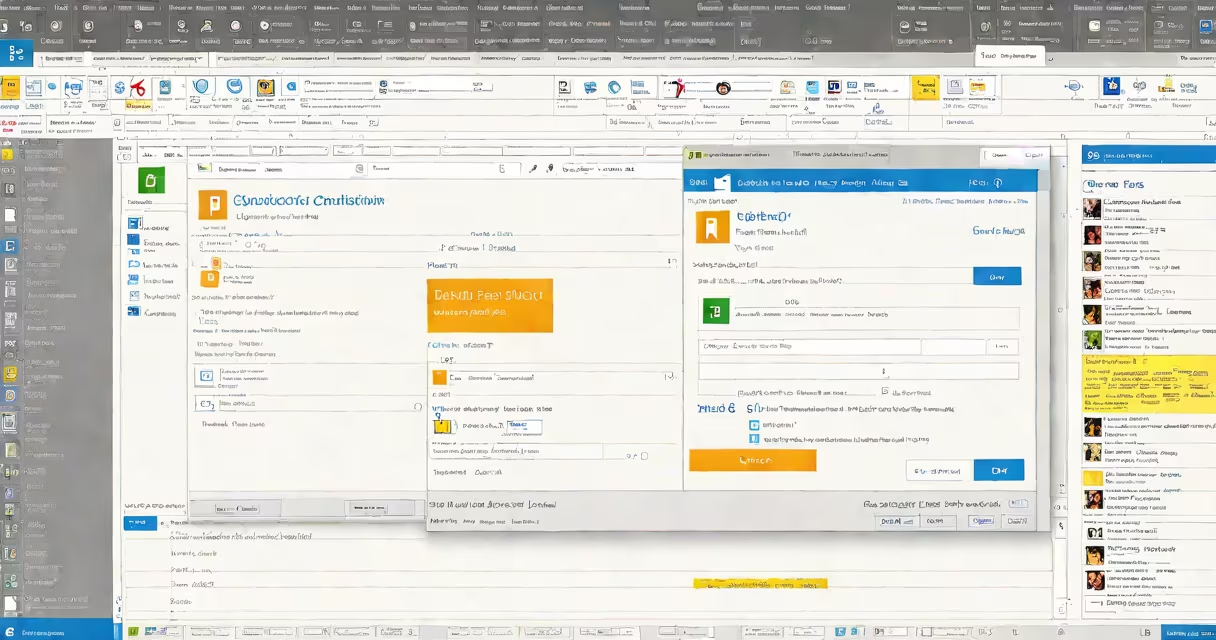
Creating a new email in Microsoft Outlook opens the compose window, where you enter a recipient, subject, and message body before sending. This function is part of the core email interface in desktop and web versions of Outlook.
The compose window appears when you select "New Email" from the Home tab or use the keyboard shortcut Ctrl + N. It includes fields for To, CC, BCC, Subject, and the message body. You can insert attachments, format text, and apply signatures. Once filled out, clicking Send transmits the message through your configured email account.
Outlook uses a client-side interface that stores drafts locally until sent. The app validates addresses before sending and integrates with Exchange Server or IMAP/POP accounts. For users with multiple accounts, Outlook lets you choose which one sends the message.
How It Works
When you click New Email, Outlook launches a modal window with a structured layout. The top section contains recipient fields: To, CC, and BCC. Below that, the Subject field accepts up to 255 characters. The main area is the message body, where you type your content using standard text formatting tools.
Outlook supports rich text editing via the ribbon toolbar. You can bold, italicize, align text, insert bullet points, and adjust font size. The "Insert" tab allows adding images, hyperlinks, tables, and embedded files. Attachments appear below the message body with a paperclip icon and file name.
Before sending, Outlook checks for valid email syntax. If the address is malformed, a red warning appears. If you close the window without sending, Outlook saves the draft in the Drafts folder. You can reopen it later from the folder list or via the "Drafts" tab in the navigation pane.
Types and Components
There are two primary ways to initiate a new email: through the desktop application or the web version. Both use similar workflows but differ slightly in interface design and feature availability.
| Method | Access Point | Key Features | Limitations |
|---|---|---|---|
| Desktop App (Windows/Mac) | Home > New Email | Full formatting, signature integration, offline draft saving | Requires installation; limited to device-specific access |
| Web Version (outlook.com) | Top-left menu > New Message | Browser-based; accessible from any device | Less advanced formatting; slower with large files |
Outlook also offers templates for common messages like meeting requests, vacation replies, and formal letters. These are stored in the Templates folder and can be applied with one click. You can customize them by editing the default text and saving as a new template.
Common Misconceptions
Many users assume that clicking "New Email" automatically creates a draft in the Drafts folder. That's incorrect. A new email window appears only when initiated manually. If you close it without sending, the draft is saved-but only if you don't exit the application without confirmation.
Another error is believing that emails sent from Outlook are instantly delivered. Delivery depends on the recipient's server, network conditions, and spam filters. Outlook shows a "Sent" status only after the mail server acknowledges receipt. This can take seconds to minutes.
A lesser-known fact: Outlook automatically converts plain text emails into HTML format when you use formatting tools. Even if you start with plain text, applying bold or inserting an image triggers HTML rendering. This affects how the message displays on mobile devices and older email clients.
Real-World Example
To send a new email to [email protected] with the subject "Project Update - Q3," follow these steps:
- Open Microsoft Outlook.
- Click Home > New Email (or press Ctrl + N).
- Type "[email protected]" in the To field.
- Enter "Project Update - Q3" in the Subject field.
- Type: "Hi John, please find attached the Q3 project report. Let me know if you have feedback."
- Click the paperclip icon and select the PDF file.
- Review the message, then click Send.
I once drafted a critical update to my team while traveling. I closed the window without sending, thinking it was lost. Later, I reopened Outlook and found the draft in Drafts. I added a missing attachment and sent it-avoiding a delay in project timelines.
Related Functions and Tools
You can create a new email from within other Outlook features. For example, when viewing a calendar event, you can right-click and select "New Email" to invite attendees. This auto-fills the To field with the event's participants.
Outlook also supports quick replies via the "Quick Step" feature. You can assign custom actions to buttons on the ribbon, such as "Send to Manager" or "Reply with Template." These reduce repetitive typing and improve workflow efficiency.
Understanding how to start a new email in Outlook prevents delays and miscommunications. The process is consistent across versions, though minor interface differences exist between Windows and Mac. Always verify recipients and attachments before hitting Send.