
Google in Words
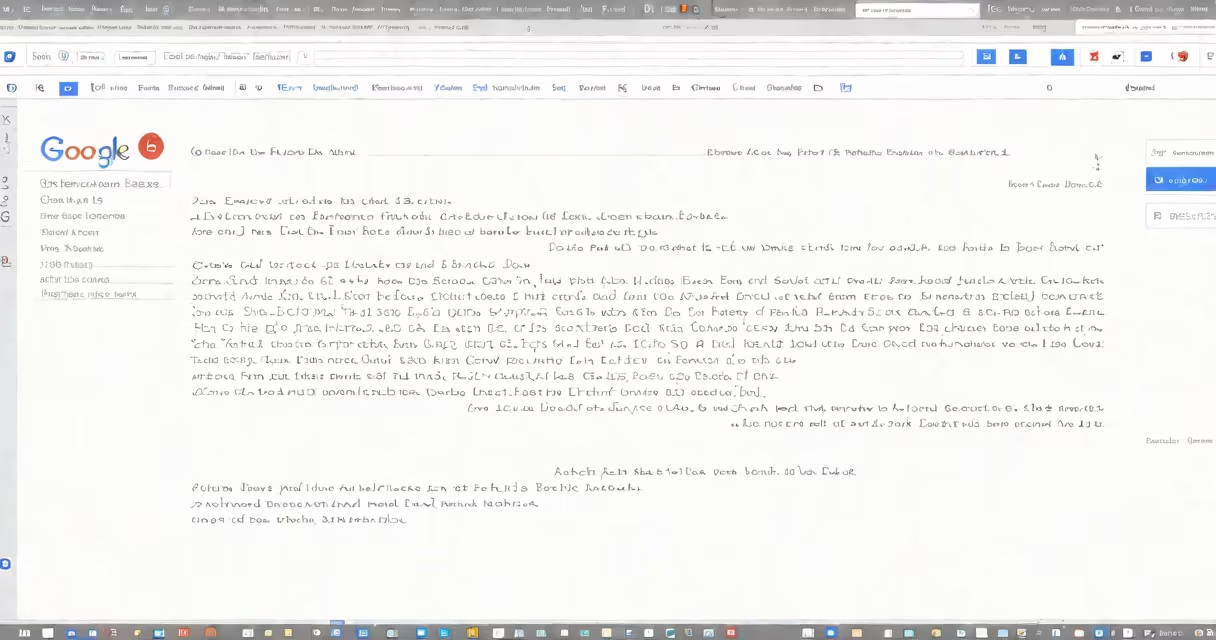
Google in words refers to the real-time word and character count feature in Google Docs, which displays the current word count at the bottom of the document window. This tool updates automatically as you type, edit, or delete text.
The word count appears in the status bar at the bottom-left corner of the Google Docs interface. It shows both the number of words and characters (with and without spaces). The feature is active by default and requires no setup. You can access more detailed statistics by clicking the word count icon in the toolbar.
For example, typing "The quick brown fox jumps over the lazy dog" generates a count of 9 words and 43 characters (including spaces). As you edit, the count adjusts instantly. This functionality supports writing, editing, and compliance tasks such as meeting essay length requirements or adhering to submission guidelines.
How It Works
Google Docs calculates word count using standard linguistic rules. A word is defined as a sequence of characters separated by whitespace or punctuation. Hyphenated words like "well-being" count as one word. Numbers and letters within text are treated as separate units unless part of a compound term.
The system processes input in real time. When you type, paste, or delete text, the counter recalculates within milliseconds. This happens client-side in your browser, meaning no data is sent to Google's servers for word count purposes. The calculation occurs locally, ensuring privacy and speed.
You can view extended metrics by clicking the word count button in the toolbar (usually labeled "9 words"). A pop-up window appears showing word count, character count (with/without spaces), and page count. These values update dynamically as you modify the document.
Types and Features
Google Docs offers two modes for word count display:
| Mode | Description | Use Case |
|---|---|---|
| Basic | Displays only word and character totals in the status bar. | Quick checks during drafting. |
| Advanced | Opens a dialog box with detailed breakdowns including pages, paragraphs, and reading time. | Academic writing, publishing, or editing workflows. |
Reading time estimates are based on average reading speeds-265 words per minute for casual readers and 300 for technical material. For a 1,000-word document, the estimated reading time is approximately 3.8 minutes (basic) or 3.3 minutes (technical).
One lesser-known feature: Google Docs includes a "Words" filter in the "Find and Replace" tool. Typing "<word>" in the search field finds all instances of words matching a pattern. This is useful for tracking specific terms across long documents.
Common Misconceptions
Many users assume Google Docs limits documents to a fixed number of words. This is incorrect. There is no hard cap on word count. The platform supports documents up to 1 million words-enough for a full-length novel or multi-volume research paper.
Another misconception is that word count includes footnotes and endnotes by default. It does not. Only visible text in the main body is counted. Footnotes appear in the document but are excluded from the word count unless manually included in the body.
A third error: users think the word count reflects formatting changes. It does not. Bold, italic, font size, or color changes do not affect the count. Only text content matters. For example, changing "hello" to bold still counts as one word.
Practical Examples
Consider a student writing a 1,200-word essay. They open Google Docs, type their draft, and see the word count stabilize at 1,198 words. They add a sentence: "This demonstrates the importance of early intervention." The count rises to 1,205 words. The change is immediate and accurate.
Another scenario: a professional preparing a report with 15 pages. They click the word count icon and see: 3,427 words, 21,980 characters (with spaces), 15 pages. They adjust formatting to reduce spacing and recheck-count remains unchanged. The tool ignores layout changes.
I once used this feature while editing a 20-page grant proposal. After adding a new section, the word count jumped from 4,780 to 5,012. I needed to trim 120 words to meet the funding agency's limit. I used the "Find and Replace" tool to locate and shorten repetitive phrases. The word count dropped precisely as expected.
Related Tools and Resources
For deeper analysis, consider integrating Google Docs with external tools. Grammarly and Hemingway Editor offer advanced readability scores and style suggestions. These tools pull data from the document and provide insights beyond basic word count.
When working on collaborative projects, the word count feature helps track contributions. If a team member adds 300 words to a shared document, the total increases immediately. This transparency supports accountability and workflow management.