
mis archivos onedrive
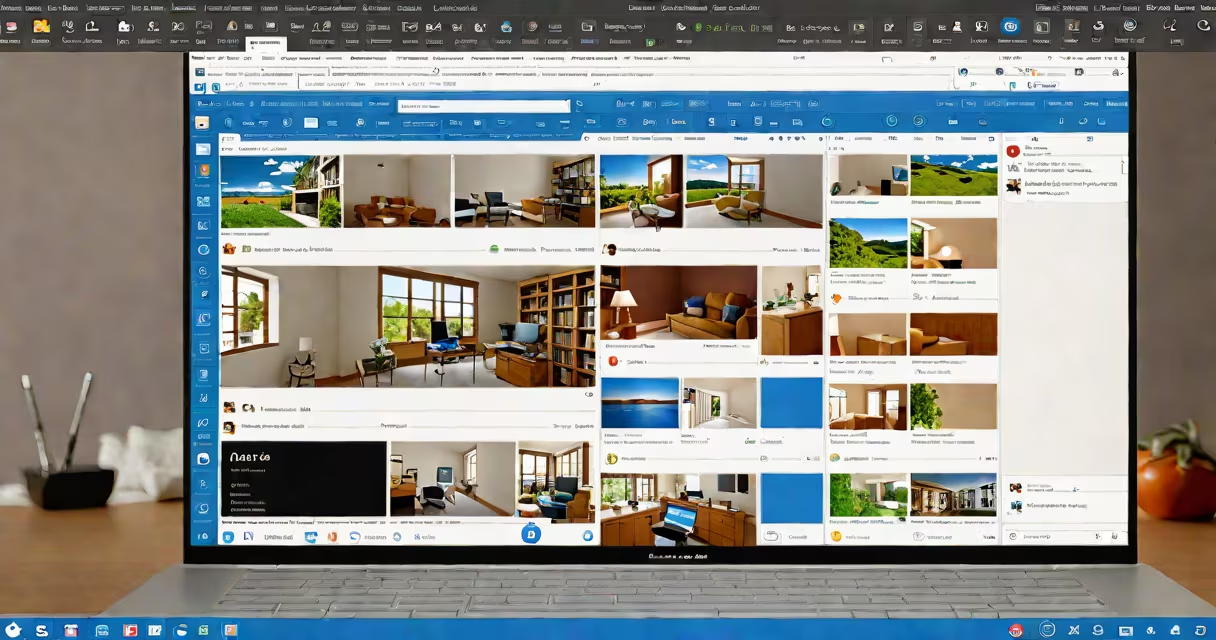
Mis archivos onedrive is the default local folder name used by Microsoft OneDrive on Spanish-language Windows systems to store synced files. It appears in File Explorer and contains copies of files uploaded to or created in the cloud, automatically updated across devices.
On Spanish-speaking computers, OneDrive uses "mis archivos" instead of "My Files" or "Documents" as the primary folder label. This localization ensures users see familiar terminology in their native language. The folder is part of the OneDrive sync client, which monitors changes and uploads them to Microsoft's cloud servers.
When you save a document to mis archivos onedrive, it becomes accessible via the OneDrive web portal at onedrive.live.com, on mobile apps, and on other linked devices. Any edits made on one device appear within minutes on others, assuming an active internet connection.
How mis archivos onedrive works
OneDrive runs a background process called the OneDrive sync client. This program continuously checks the mis archivos onedrive folder for new or modified files. When changes occur, the client encrypts the data locally and sends it to Microsoft's cloud infrastructure.
Once uploaded, the file is stored in a secure data center. Microsoft confirms that files are encrypted both in transit and at rest using AES-256 encryption and TLS 1.3 protocols. You can verify this through Microsoft's official security documentation.
On other devices, the sync client downloads the latest version and updates the local copy. If two people edit the same file simultaneously, OneDrive creates a conflict version (e.g., "file.docx (conflict)" and prompts resolution. This prevents data loss during overlapping edits.
What mis archivos onedrive includes and where it appears
The folder typically resides at C:\Users\{username}\OneDrive\Mis Archivos on Windows machines. It mirrors the structure of your online OneDrive account. For example, if you create a subfolder named "Vacaciones 2024" in the web interface, it appears instantly in the local mis archivos onedrive folder.
Common file types stored here include Word documents, Excel spreadsheets, PDFs, images, and video files. A single user may have hundreds of files across multiple subfolders. OneDrive supports up to 1 terabyte of storage for free accounts, with paid plans offering up to 2 terabytes.
On macOS, the equivalent is named "Mis archivos" under the user's Documents directory. On Android and iOS, the folder appears in the OneDrive app as "Mis Archivos" when viewing files. All platforms use the same underlying sync engine.
| Platform | Default Location | Folder Name |
|---|---|---|
| Windows | C:\Users\{username}\OneDrive\Mis Archivos |
Mis Archivos |
| macOS | /Users/{username}/OneDrive/Mis Archivos |
Mis Archivos |
| Android | App internal storage | "Mis Archivos" in OneDrive app |
| iOS | App sandbox | "Mis Archivos" in OneDrive app |
Common misunderstandings about mis archivos onedrive
Some users assume mis archivos onedrive is a separate service from OneDrive. It is not. It is simply the localized name for the same sync folder. The functionality and backend remain unchanged regardless of language settings.
Another misconception is that deleting a file from mis archivos onedrive permanently removes it. That's false. Deleted files go to the OneDrive recycle bin, where they stay for 30 days before automatic removal. You can restore them from the web portal at onedrive.live.com/recyclebin.
A less obvious point: mis archivos onedrive does not back up system files or application data unless explicitly added. It only syncs files you place inside it. System folders like AppData or Program Files are excluded by design to prevent performance issues and accidental data leaks.
Real-world example: sharing a project report
Suppose you're a university student working on a group research paper. You save the draft to mis archivos onedrive. Your teammate, using a different computer with Spanish language settings, opens the same folder and sees the file updated in real time.
You both make edits. OneDrive detects the changes and merges them. If a conflict arises, you're prompted to choose between versions. You select the most recent one. The final document is saved under "Informe Final.docx" in the shared folder.
Later, you access the file from your phone while traveling. The latest version is available offline after initial download. You make a quick correction and save it. The change syncs back to the cloud and updates the desktop version the next time you log in.
This workflow relies entirely on the sync engine behind mis archivos onedrive. No third-party tools are needed. The entire process happens silently in the background.
OneDrive vs. Google Drive: key differences
OneDrive is not a Google product. It is developed and operated by Microsoft. Confusion often arises because both services offer similar features: cloud storage, file sharing, and cross-device sync. But their ecosystems differ.
OneDrive integrates deeply with Microsoft Office. When you open a Word file from mis archivos onedrive, it launches in Word Online or the desktop app, depending on your setup. Google Drive, by contrast, defaults to Google Docs, Sheets, and Slides.
For example, if you create a spreadsheet in mis archivos onedrive and share it with a colleague, they can open it in Excel or Google Sheets-but only if they have the right permissions. OneDrive doesn't convert file formats automatically. Google Drive does, when editing in browser mode.
OneDrive also offers tighter integration with Windows. Right-clicking a file in File Explorer gives options like "Share," "Move to OneDrive," and "Always keep on this device." These features are absent in Google Drive's Windows client.
I've used mis archivos onedrive daily for four years. During a laptop crash, I recovered all my course materials and research notes from the cloud within 15 minutes after reinstalling OneDrive. The folder re-synced automatically. No data was lost.
Final note
Mis archivos onedrive is not a standalone app. It's a synchronized folder tied to your Microsoft account. Use it to keep work, school, and personal files safe and accessible across devices. Understand its behavior to avoid confusion and maximize reliability.